How to use your license code
You may need to use your license code to update your software automatically from your website.
Get your license code and set your domain
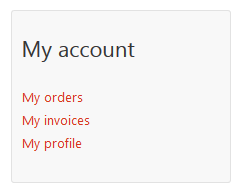
First you must login on https://www.template-creator.com with your username and password, then click on My orders in the right column to go in your personal area.
You will see your license code in the page. Example :

This is the code that you must use in your websites to get the automatic updates. You must also tell on which websites you are allowing the license (this is to fight against hacking, and this allows you to remove the automatic updates on a website if you need to).
Set the domain of your website in the fields. You can click on the button Add a domain to add more than one domain.
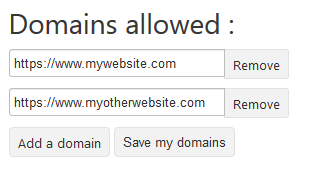
Once your list is ok, click on the Save my domains button to save your data. You can edit or remove your domains at any time. When you remove a domain, don't forget to click on the Save my domains button to apply your changes.
Put your license code into your website
To do that you will need to install the extension Extensions Manager CK. It's the manager for all extensions from https://www.joomlack.fr (Template Creator CK is developped by JoomlaCK).
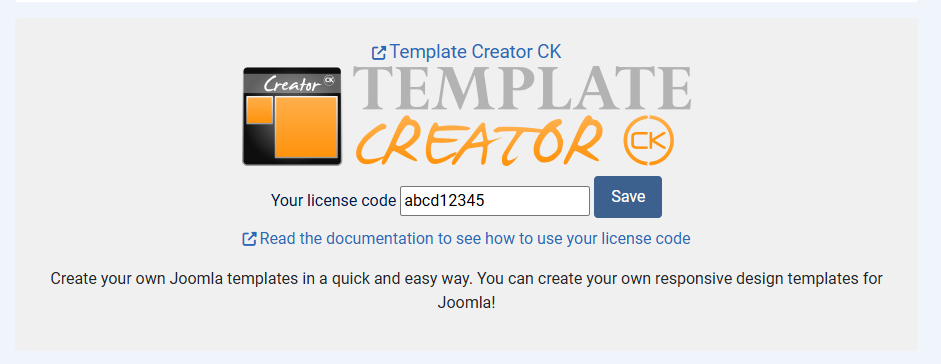
Go at the bottom of the Extensions Manager CK interface and search for the place to enter your Template Creator CK licence code. Note that this licence is different from the licence for the other extensions available on https://www.joomlack.fr
Update your extension
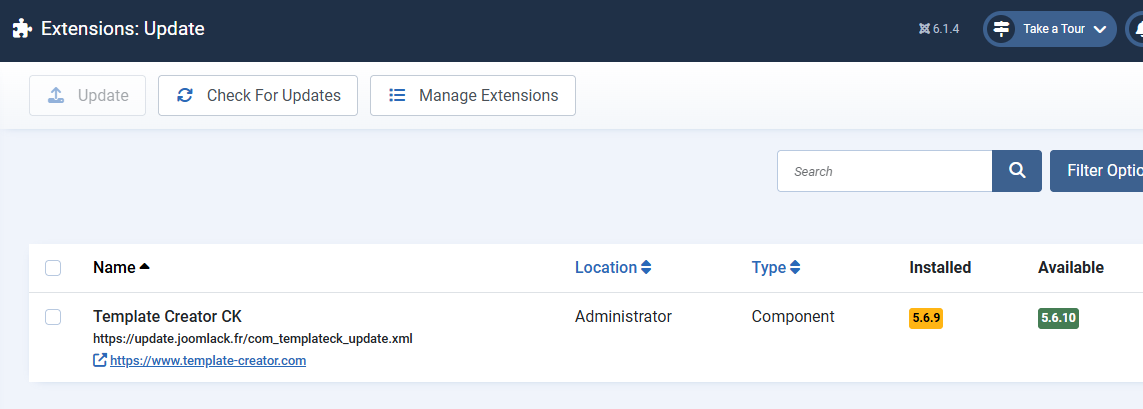
Go in the admin menu of your website >> System >> Update >> Extensions. You will see the list of extensions that needs to be updated, you can select Template Creator CK and click on the Update button. It will work only if your domain has been setup in your account.